
Messages | Version française |


? | Home page | Tutorial | Mixing in practice | Vocals

Site de Grebz
Home page


VOCALS

Reminder: we are working on the song Life, an original composition:


(mp3 file)

To record the vocals, I used a Rode NT5, a small-diaphragm condenser microphone that I also use for recording theater plays. It's a compact mic with a small diaphragm and excellent sensitivity. I find it more effective and faithful than the Shure SM57 dynamic mic I used previously. The high-end reproduction, in particular, is much better with the Rode, and the overall sound feels more open and airy. Like all condenser microphones, it requires 48V phantom power, which I activated on my preamp. The mic is connected via an XLR cable to my AudioBuddy transistor preamp by M-Audio—an affordable and very transparent preamp that adds no coloration or hiss—which is then linked to my audio interface.

In the song Life, there is one lead vocal track and two backing vocal tracks. These are recordings of my own voice using the Rode NT5. However, there are also two vocal tracks created with Miroslav Philharmonik, a virtual instrument software for classical sounds (violins, flutes, etc.), so I composed these virtual vocal parts on a MIDI track.

Here is the list of plugins I used for the vocals:
* FinalPlug by Wave Arts, a limiter
* Miroslav Philharmonik by IK Multimedia, a very comprehensive virtual philharmonic orchestra. It's not the absolute best, and it's quite old, but it remains excellent and especially unmatched at its current price (€120). I mainly use it to compose music for theater plays.
* WizooVerb by Wizoo, a reverb plugin
* TrackPlug by Wave Arts, a parametric equalizer
* Classic Delay by Kjaerhus Audio, a simple and free delay

Let's see how to process the different types of vocals, including volumes, panning, and plugins...

Lead Vocal Line

Backing Vocals

Virtual Vocals

Main Vocal Bus

Mixing in practice : Preparing the session | Bass | Drums | Rhythm guitars | Lead guitars | Synths | Vocals | Mastering
Haut de page

MAIN VOCALS

Recording Track - "Dry Lead Vocals" Bus - "Reverb" Bus - "Delay" Bus - "Lead Vocals" Bus

Recording Track

Mono audio track
Panning: Center
Volume: 0 dB
Plugin: Limiter
Destination: "Dry Lead Vocals" bus


When recording my voice, I made sure the recorded volume was around -10 dB to avoid any risk of clipping and to maintain enough headroom. However, since this volume is relatively low, I placed a limiter on the track to boost the signal significantly. This compression helps bring the vocals to the forefront compared to other instruments, though it is obviously not the only factor. My limiter is set with a threshold of -12 dB and a ceiling of -0.1 dB. The track signal is then routed to a bus I named "Dry Lead Vocals." The limiter used is the FinalPlug plugin by WaveArts. This is a paid plugin, which you can replace with George Yohng's W1 Limiter, an excellent free limiter downloadable on this page.

This track is routed to the bus I named "Dry Lead Vocals," described below.

"Dry Lead Vocals" Bus

Source: Lead vocal recording track
Destination: "Lead Vocal Reverb" and "Lead Vocal Delay" buses
Panning: Center
Volume: -23 dB.


The volume is set to a low value because the effects on other buses, which will be added later, will boost the overall volume of the lead vocals. Furthermore, sufficient headroom must be planned to avoid clipping the Master bus at the end of the chain—the bus where all instruments and vocals converge. If the volumes of all buses were at 0 dB, it would obviously cause a major problem on the Master bus, and likely even before reaching that final stage.

Here are the lead vocals as recorded, without effects:


(mp3 file)

The limiter on the track is not activated here, which is why the sound is very quiet.

This raw sound is then routed to two other buses: the bus containing the reverb, and the bus containing the delay. They are described one after the other below, but they are processed in parallel within the sequencer before converging further down the line.

"Lead Vocal Reverb" Bus

Source: "Dry Lead Vocals" bus
Destination: "Lead Vocals" bus
Panning: Center
Volume: -6 dB.
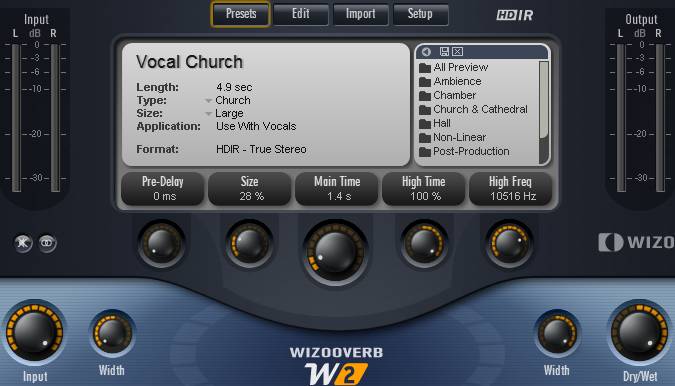

With its volume at -6 dB, the reverb is 6 dB lower than the dry vocals to avoid drowning them out. The goal is simply to add some "air" and ensure the sound isn't too dry.
Here are the lead vocals with reverb.
You only hear the reverb alone here, not mixed with the dry vocals.


(mp3 file)

I used the WizooVerb plugin, a plugin that hasn't been sold for several years but still sounds great. It can still be found in the darker corners of the internet (I don't condone this, but you do as you wish), or you can use other paid or free reverb plugins. They are easy to find, and I suggest a few on this page. I commonly use SIR Convolution, which works with impulses, much like cabinet simulators. But instead of using cabinet impulses, we use room impulses recorded in various locations (from bathrooms to cathedrals, concert halls, or rooms in a house).

Here are the settings used with the WizooVerb plugin by Wizoo:

- I used the "Vocal Church" preset. I reduced its "size" to 28% to avoid the impression of recording in too large a space; the decay time is set to 1.4s and I adjusted the "Width" parameters so the reverb spreads across the entire stereo field.

- The reverb blend is controlled with the "DryWet" knob. At 0%, no reverb is heard; at 100%, only the reverb is heard without the dry signal. Here, it is set to 100% because the reverb plugin is placed on a bus dedicated solely to reverb, which will later be mixed with other treatments (the dry sound and the delay). I only want the reverb sound and nothing else here.

- Using reverb on a voice is common. The dosage is up to each individual, but too much reverb distances the voice, which ends up drowned in the mix. For the lead vocal line, this is not the desired effect; on the contrary, the voice must be brought forward since it often carries the melody.
Wizooverb Plugin
Wizooverb Plugin

"Lead Vocal Delay" Bus

Source: "Dry Lead Vocals" bus
Destination: "Lead Vocals" bus
Panning: Center
Volume: 0 dB


Here are the lead vocals with delay.
You hear the delay added to the dry vocals here.


(mp3 file)

On this bus, I use the Classic Delay plugin by Kjaerhus Audio, a free plugin you can download on this page. The delay adds an echo effect to the sound, which helps fill out the sonic space. Combined with the reverb, this gives the lead vocal line a somewhat atmospheric feel.

The settings as seen in the image below produce an effect where the original sound arrives first (adding to the dry vocals), then a first echo appears after about 1 second, slightly quieter than the dry sound, and then 1 second later, a second echo is audible, but much quieter than the first. In the full mix of the song, it is almost inaudible, but it nonetheless contributes to the overall sound.

Classic Delay Plugin

"Lead Vocals" Bus

Source: "Dry Lead Vocals", "Lead Vocal Reverb", and "Lead Vocal Delay" buses
Destination: Main Vocal bus
Panning: Center
Volume: -5 dB
The dry vocal, reverb, and delay buses now all converge into the "Lead Vocals" bus.
Here are the lead vocals with reverb and delay.


(mp3 file)

However, processing is not finished, as we are going to add an equalizer and a limiter.
Same thing, but with an equalizer and a limiter.
Heads up: the volume is much higher.


(mp3 file)

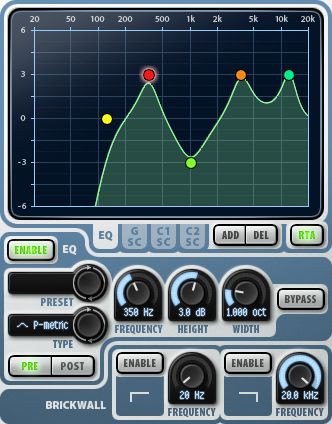
You can see in the image below how I equalized the voice. Specifically, I removed all low frequencies by placing a low-cut filter at 120 Hz. I also lowered the frequency around 1 kHz by about 3 dB, as it contributed nothing to the voice and freed up space for other instruments. Finally, I boosted the 345 Hz, 3.60 kHz, and 12 kHz frequencies by about 3 dB to better highlight the voice in the mix. Of course, these frequencies work for *my* voice and in this specific song, but in another song, the settings would be different. There is no single setting that fits all situations.

The plugin used is TrackPlug by Wave Arts, a paid plugin, but free ones exist, such as Cockos ReaEQ which you can download on this page.


TrackPlug Plugin
TrackPlug Plugin

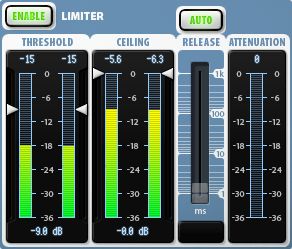
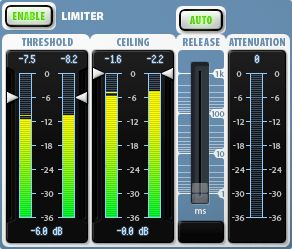
Next, I applied a limiter with a threshold at -9 dB and a ceiling at 0 dB (thus limited to the bus volume), which significantly boosts the vocals to place them at the forefront of the song.

The plugin used is FinalPlug by Wave Arts, a paid plugin that you can replace with George Yohng's W1 Limiter, an excellent free limiter downloadable on this page.


FinalPlug Plugin
FinalPlug Plugin
That's it, the processing of the lead vocal line is complete. Below, we will see how I proceeded with the backing vocals, then with the virtual vocals. These three vocal groups will meet on the main vocal bus before finishing on the Master bus with all the other instruments of the song.

Mixing in practice : Preparing the session | Bass | Drums | Rhythm guitars | Lead guitars | Synths | Vocals | Mastering
Haut de page

BACKING VOCALS

There are two backing vocal recordings; one will be heard on the left and the other on the right of the stereo field. Both backing tracks have the same content, but it is not a copy-paste: I recorded the two backing tracks separately so that they differ slightly from one another.

Recording Tracks - Raw Takes - Reverb - "Backing Vocals 1" and "Backing Vocals 2" Buses - Automation

Recording Tracks

There are two vocal tracks for the backing vocals. I recorded them separately, so they are indeed two distinct recordings and not a simple copy-paste from one track to another.

Mono audio tracks
Panning: Center
Volume: 0 dB
Destination: The 1st track is routed to the "Dry Backing 1" and "Backing 1 Reverb" buses; the 2nd track is routed to the "Dry Backing 2" and "Backing 2 Reverb" buses


As with the lead vocal track, I recorded these two tracks ensuring the recorded volume stayed on average around -10 dB. However, I am not adding a limiter here.

The first backing track is then routed simultaneously to the "Dry Backing 1" and "Backing 1 Reverb" buses, while the second backing track is routed to the "Dry Backing 2" and "Backing 2 Reverb" buses.

"Dry Backing 1" and "Dry Backing 2" Buses

Sources: Backing 1 and Backing 2 tracks
Destinations: "Backing 1" Bus and "Backing 2" Bus
Panning: Center
Volumes: 0 dB


Here is Backing Vocal 1 as recorded without effects:


(mp3 file)

And Backing Vocal 2:


(mp3 file)

Of course, the two recordings are similar, as I tried to sing identically. But since I am not a machine (!), even when trying to do the same thing twice in a row, small differences remain. These aren't really audible but prevent having the exact same sound in both ears. With a copy-paste, if you place a sound on the left and its exact copy on the right, you end up with a mono sound in the end. Whereas with *nearly* identical sounds, you preserve the stereo. Unless you shift one sound by a few milliseconds relative to the other, which then creates a slight chorus effect.

Reverbs are added on two other buses, which will then be combined with the dry sound.

"Backing 1 Reverb" and "Backing 2 Reverb" Buses

Sources: Backing 1 and Backing 2 tracks
Destinations: "Backing 1" Bus and "Backing 2" Bus
Panning: Center
Volumes: -6 dB


Here is Backing Vocal 1 with reverb
You only hear the reverb alone here, not mixed with the raw vocals.


(mp3 file)

And the reverb for Backing Vocal 2:


(mp3 file)

I used the Wizooverb plugin again with the settings shown in the image below. Here are the settings used with the WizooVerb plugin by Wizoo:

- I used the "Cathedral" preset. I set the "size" to its maximum (100%) to achieve a large space effect and give the impression that the backing vocals are in the background. The decay time is set to 2.8s and I adjusted the "Width" parameters so the reverb spreads across the entire stereo field. However, as each backing vocal will only occupy the right side of the stereo field for one and the left for the other, each reverb will remain confined to the right for one and the left for the other. But at this stage, the panning is not yet set, so the examples place the sound in the center.

- The reverb amount is controlled with the "DryWet" knob. At 0%, no reverb is heard; at 100%, only the reverb is heard without the dry signal. Here, it is set to 100% because the reverb plugin is placed on a bus that only processes reverb, which will later be mixed with other treatments (in this case, the dry sound). Therefore, I only want the sound of the reverb and nothing else here.

- The reverb settings are identical for both backing vocals with one exception: for Backing Vocal 1, the "High Freq" parameter is set to 7107 Hz (as seen in the image below), while for Backing Vocal 2's reverb, this setting is at 3600 Hz. This means these high frequencies are not boosted the same way on both backing vocals. This setting is not available on all reverb plugins, but one could reproduce the same effect by adding an equalization plugin after the reverb with appropriate settings. This helps distinguish the two backing vocals a bit more.
Wizooverb Plugin
Wizooverb Plugin

"Backing 1" and "Backing 2" Buses

Sources: "Backing 1 Reverb" and "Backing 2 Reverb" buses
Destinations: Main Vocal bus
Panning: Variable, set by different automation on the two buses. Mostly 70% left for Backing Vocal 1 and 70% right for Backing Vocal 2.
Volumes: Variable, set by different automation on the two buses. Mostly at -10 dB.
Plugins: an equalizer and a limiter on each bus
Here is Backing Vocal 1 with dry sound and reverb:


(mp3 file)

And Backing Vocal 2:


(mp3 file)

I add an equalizer and a limiter, as well as the final stereo placement.
Here is Backing Vocal 1 with dry sound and reverb. It is located on the left in the stereo field:


(mp3 file)

And Backing Vocal 2. It is located on the right in the stereo field:


(mp3 file)

And finally, both together:


(mp3 file)

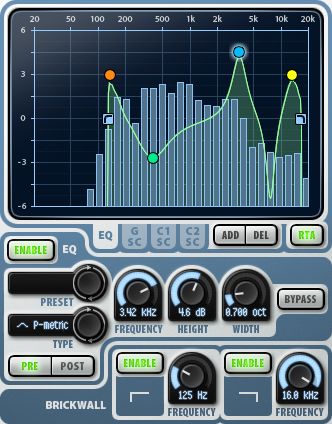
You can see in the image below how I equalized the backing vocals. Note that the settings are identical for Backing 1 and Backing 2. I cut all low frequencies by placing a brickwall low-cut filter at 125 Hz. This frequency is nonetheless boosted at +3 dB to provide some foundation in the low-mids. I scooped out the mids between 200 Hz and 2 kHz, with a more notable dip of -2.6 dB around 380 Hz. I boosted by +4.5 dB around 3.3 kHz. I scooped by 6 dB around 7.5 kHz and boosted by 3 dB around 13 kHz to bring in some air and brilliance to the backing vocals. Finally, I applied a brickwall high-cut at 16 kHz. There wasn't much useful information beyond this frequency anyway.

The plugin used is TrackPlug by Wave Arts, a paid plugin, but free ones exist, such as Cockos ReaEQ which you can download on this page.


TrackPlug Plugin
TrackPlug Plugin

Next, I applied a limiter with a threshold at -6 dB and a ceiling at 0 dB (thus limited to the bus volume), which boosts the backing vocals a bit to put them at the appropriate level relative to the lead vocal and other instruments.

The plugin used is FinalPlug by Wave Arts, a paid plugin that you can replace with George Yohng's W1 Limiter, an excellent free limiter downloadable on this page.


FinalPlug Plugin
FinalPlug Plugin

Automation

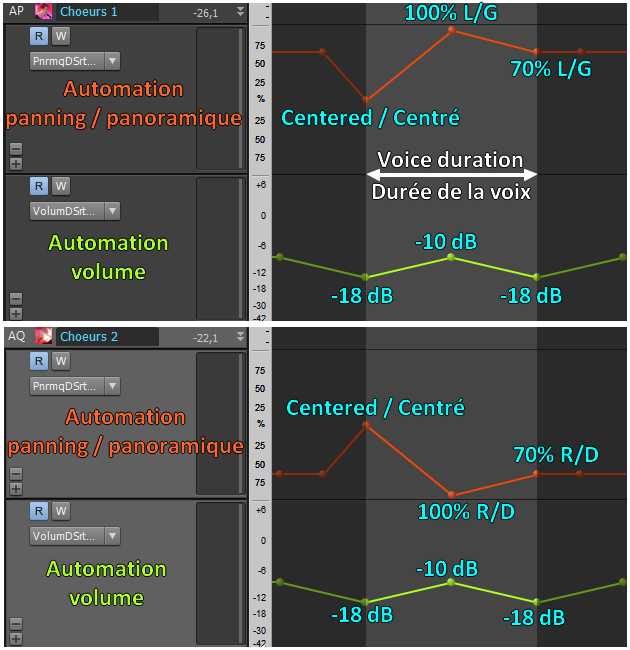
As mentioned earlier, I used automation for the volume and panning of Backing Vocals 1 and 2 in certain places. Here is an example. At about 2'14 into the song, you can hear voices that sound a bit like sighs. To give them movement while the voice lasts, I increased the volume from -18 dB to -10 dB, then brought it back down to -18 dB. At the same time, Backing 1 moves from center to 100% left then returns to 70% left, while Backing 2 moves from center to 100% right and ends at 70% right.
The sound therefore starts at the center and the backing vocals immediately move away to the left and right sides, while their volume increases then decreases.
Here is an example of Backing Vocal 1 automation:


(mp3 file)

Here is an example of Backing Vocal 2 automation:


(mp3 file)

And finally, both together:


(mp3 file)

Automation
Backing 1 and 2 automation, volume and panning
Backing vocal processing is finished. Below, we will look at the virtual vocals. These three vocal groups will meet on the main vocal bus before ending on the Master bus, along with all the other instruments in the song.

Mixing in practice : Preparing the session | Bass | Drums | Rhythm guitars | Lead guitars | Synths | Vocals | Mastering
Haut de page

VIRTUAL VOCALS

In addition to the backing vocals, I use voices from the Miroslav Philharmonik software, a VSTi that offers orchestral sounds, including male and female choirs recorded by professionals from a classical orchestra. These voices are not brought to the forefront, but they add a slightly dreamlike atmosphere to the song.

Recording Tracks - "Phil Choir 1" and "Phil Choir 2" Buses - Reverb - Automation - "Philharmonik Choir" Bus

Recording Tracks

Mono MIDI tracks linked to tracks
Panning: Center
Volume: 0 dB
Destination: The first track is routed to the "Phil Choir 1" bus; the second track is routed to the "Phil Choir 2" bus
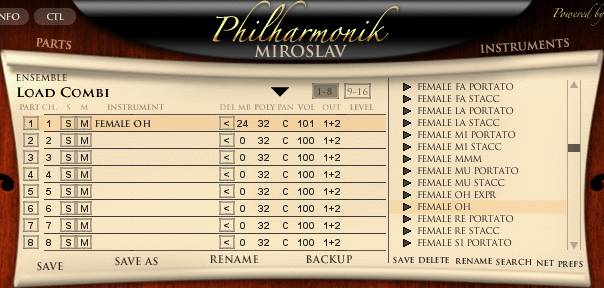

There are two virtual vocal tracks. These are MIDI compositions and not recordings via a microphone. Each of the two virtual vocal tracks consists of an audio track with an instance of the Miroslav Philharmonik plugin, associated with a MIDI track containing the MIDI score.

Both tracks are made with female choir sounds. The first track consists of choirs performing "oh" vocalizations, and the second track consists of choirs performing "ah" vocalizations.
Miroslav Philharmonik

"Phil Choir 1" and "Phil Choir 2" Buses

Sources: "Philharmonik 1" and "Philharmonik 2" tracks
Destination: "Philharmonik Choir" Bus
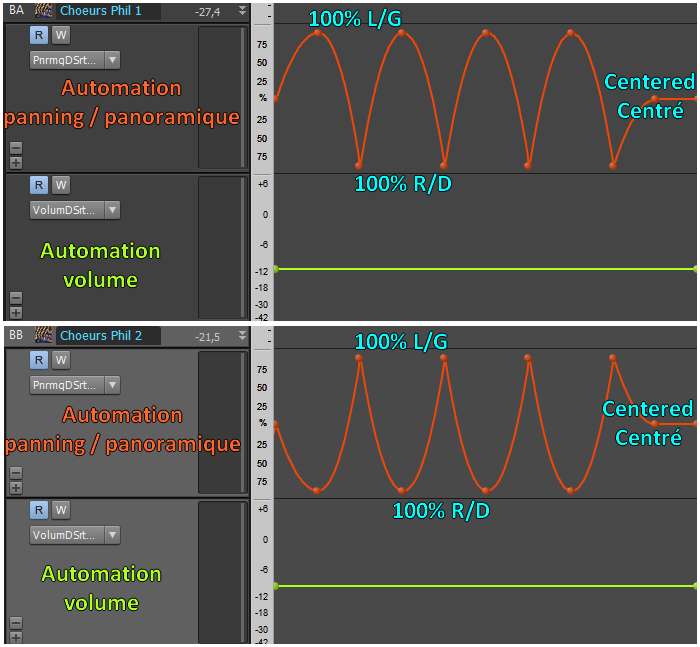
Panning: Variable, set by different automation on the two buses.
Volume: Variable, set by automation that changes from time to time throughout the song.
Plugins: Reverb
Here are the virtual choirs 1 without reverb:


(mp3 file)

And virtual choirs 2:


(mp3 file)

Although these voices are samples of real voices, this composition doesn't sound very realistic, as that is not the goal. For example, all the notes flow into each other, whereas real singers would need to take breaks to breathe. But in the context of the song Life, these voices are not highlighted at all; they only serve to fill the soundscape in the background. It is therefore unnecessary to worry about details that no one will ultimately hear. The goal is rather to achieve a pleasant and dreamlike background sound rather than a stunning orchestral choir that grips you.

Reverb

I placed a reverb on each of these same buses, "Phil Choir 1" and "Phil Choir 2".

Here are the virtual choirs 1 with reverb:


(mp3 file)

And the reverb for virtual choirs 2:


(mp3 file)

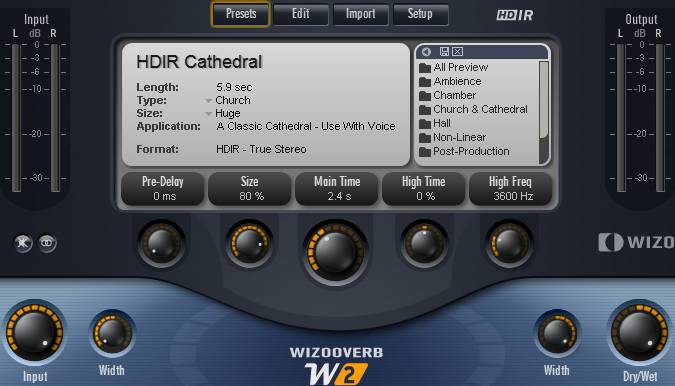
Here too, I used the Wizooverb plugin with the settings shown in the image below.

Here are the settings used with the WizooVerb plugin by Wizoo:

- I used the Cathedral preset. I set the "size" to 80% to achieve a significant space effect and give the impression that the choirs are in the background. The decay time is set to 2.4s. I adjusted the "Width" parameters so that the reverb spreads across the entire stereo field. At this stage, the panning is not yet set, so the audio examples place the sound in the center.

- The reverb amount is controlled with the "DryWet" knob. At 0%, no reverb is heard; at 100%, only the reverb is heard and no longer the dry sound. Here, it is set to 100%, and since the reverb plugin is placed on the bus where the raw voices arrive, only the reverberated sound will be heard in the song and not the dry sound at all.
Wizooverb Plugin
Wizooverb Plugin

Automation

Still on the same "Phil Choir 1" and "Phil Choir 2" buses, I applied volume automation (with only a few variations throughout the song) and, most importantly, panning automation. The virtual choirs constantly move from right to left, crossing each other, since the automations for the two virtual choirs are symmetrical. When one is on the left, the other is on the right and vice versa.

The image below corresponds to the passage heard in the audio clips; the volume doesn't move, but as you can see, the panning constantly shifts from left to right. This is clearly audible in the clips below.

Virtual Choir 1 Automation:


(mp3 file)

Virtual Choir 2 Automation:


(mp3 file)

Automation
Virtual Choir 1 and 2 automation, volume and panning

"Philharmonik Choir" Bus

Sources: "Phil Choir 1" and "Phil Choir 2" buses
Destination: Main Vocal bus
Panning: Center
Volume: 0 dB.
Plugins: an equalizer


This is the bus where the two virtual vocal buses converge. I apply fairly strong equalization that cuts all low and high frequencies, keeping only the mids around 1 kHz. This ensures they don't occupy too many frequencies, leaving plenty of room for other instruments in the song without sacrificing the quality of the chosen virtual voices. This aggressive equalization doesn't seem to denature the virtual voices, which are in the background of the mix anyway.

Virtual Choir 1 Automation (with EQ):


(mp3 file)

Virtual Choir 2 Automation (with EQ):


(mp3 file)

And finally, both together:


(mp3 file)

The processing of virtual voices is finished. These voices will now join the lead vocal and backing vocals on the main vocal bus, as we will see below.

Mixing in practice : Preparing the session | Bass | Drums | Rhythm guitars | Lead guitars | Synths | Vocals | Mastering
Haut de page

MAIN VOCAL BUS

Sources: "Lead Vocal" bus, "Backing 1" and "Backing 2" buses, "Philharmonik Choir" bus
Destination: Master Bus
Panning: Center
Volume: -7 dB.
Plugins: None


The different types of voices from the buses described above converge on this bus: lead vocals, backing vocals, and virtual voices. No plugins are necessary here, as all the processing I needed was applied previously.
Here is the final result of all the voices together on the main vocal bus:


(mp3 file)

Finally, the main vocal bus is routed to the Master bus to converge with all the other instruments in the song.

Mixing in practice : Preparing the session | Bass | Drums | Rhythm guitars | Lead guitars | Synths | Vocals | Mastering
Haut de page
Top of page


MESSAGES

(leave a message)

Messages page # 1 2 3 4 5 6 7 8 9 10 11 12 13 14 15 16 17 18 19 20 21 22 23 24 25 26 27 28 29 30 31 32 33 34 35


marco
le 08/01/2012 à 23h31

Super site, merci pour tout ce travail, j'y vois enfin plus clair dans le monde de la MAO, et merci pour tous les sons des amplis. J'ai un son de guitare qui tue !!!


grohl
le 03/01/2012 à 22h22

Salut grebz,

Tout d'abord bravo pour ton site.
Je te contacte en fait parce que j'ai plusieurs questions à te poser.
Je suis une quiche en info mais pourtant j'aimerais bien m'amuser à enregistrer mes compos via un simulateur d'ampli.
J'ai téléchargé Kuassa amplifikation lite et le souci c'est que je n'ai aucun son qui sort quand je branche ma guitare sur le PC.
En matos, je n'ai pas grand chose, j'ai testé comme ça avec mon PC portable et sa carte son avec ma gratte branché en direct et mon casque audio basique mais qui fait le boulot.
Première question:
mon matos et mes branchements correspondent-ils ?
Si non, que me conseilles-tu comme matos à pas cher pour que je puisse me faire plaisir ?

Je t'en remercie d'avance

A+
Grohl

* * * * * * * * * * * * * * * *

<em>Je manque un peu de détails mais a priori, tu n'as pas vraiment l'équipement pour jouer convenablement de la guitare sur PC via un simulateur d'ampli.

Premier point :
Kuassa est un VST, c'est à dire un plugin. Les VST ne peuvent pas être utilisés indépendamment, ils viennent se greffer sur un logiciel hôte, en général un séquenceur.
Il existe des logiciels qui ne sont pas des séquenceurs mais des "hôtes VST" qui permettent d'utiliser des VST sans séquenceur. J'en connais un gratuit, mais je ne l'ai jamais testé, donc je ne sais pas s'il fonctionne bien ou pas. Il s'appelle tout simplement VST Host : <a href="/Downloads/tutorial_homestudio/vsthost.zip">Télécharger</a> (vshost.zip, 194 Ko).
S'il marche, très bien, cela épargne l'achat et l'utilisation des séquenceurs, qui sont quand même un peu complexes pour ceux qui n'ont pas envie de se prendre la tête et qui veulent simplement pouvoir jouer. En revanche pour s'enregistrer, l'utilisation d'un séquenceur devient indispensable.
Voir ma <a href="musique_homestudio_tutorial_required_3.php" target="_blanck">page sur les séquenceurs</a> pour se faire une idée.
Comme dit sur la question précédente, je conseille d'essayer Reaper pour diverses raisons. Fiable et peu cher, tout en gardant en tête qu'un séquenceur n'est pas évident du tout à prendre en main quand on débute totalement. Mais c'est comme tout, si on veut vraiment, on peut et il suffit d'apprendre. Pas toujours évident, mais loin d'être insurmontable.

Deuxième point :
La carte son intégrée à l'ordinateur portable... Elle a deux défauts pour ce que tu veux en faire.

- D'abord elle n'est pas conçue pour le volume sonore très faible qu'une guitare électrique lui envoie quand tu la branches en direct. Les guitares électriques (ou électro-acoustiques... toutes celles qui se branchent, quoi) ont besoin d'une amplification, ce que la carte son intégrée à l'ordinateur n'offre pas.
Pour remédier à cela, il faut donc soit passer par un préampli (<a href="musique_homestudio_tutorial_required_2.php#preamp" target="_blanck">exemple ici</a>), soit, ce qui est bien mieux, par une véritable interface audio (<a href="musique_homestudio_tutorial_required_2.php#interface" target="_blanck">ici</a>).

- Ensuite, les cartes audio basiques provoquent de la latence, c'est à dire un délai entre le moment où l'on joue sur l'instrument et le moment où on entend le son dans le casque ou les enceintes. Et cette latence est souvent trop grande pour permettre de jouer dans de bonnes conditions (une bonne demi-seconde, ce qui est énorme).
On peut y remédier grâce à Asio4All (<a href="http://www.asio4all.com/" target="_blank">site officiel</a>), un petit logiciel qui permet de réduire fortement la latence des cartes audio de base, mais ce n'est pas l'idéal malgré tout.

La meilleure solution reste vraiment l'interface audio. Pour du matériel correct, il faut quand même compter aux alentours de 150 euros en entrée de gamme, et il ne faut pas être surpris de tomber sur des prix d'interfaces entre 300 et 1000 euros ! Oui, la MAO a malheureusement un coût.

Troisième point :
Le casque... je ne sais pas ce que c'est comme modèle, mais comme je le dis dans mon didacticiel, mixer au casque n'est pas très recommandé, sauf (et encore...) avec de très bons casques spécifiques. Bon, n'exagérons pas, on peut très bien débuter et se faire plaisir avec du matériel de base. Si vraiment ça devient une passion et qu'on veut absolument faire "aussi bien que les pros", il faudra investir dans du matériel plus complet et plus haut de gamme. Mais chaque chose en son temps et à moins d'avoir de l'argent à claquer, il est raisonnable d'être prudent (et prudent d'être raisonnable). Commence donc avec ce que tu as comme casque, l'investissement dans des enceintes de monitoring viendra plus tard.

En résumé :
<strong>Guitare -> (préampli) interface audio -> ordinateur -> séquenceur -> simulateur d'ampli -> simulateur de baffle -> casque</strong>

Grebz</em>


Gulibert
le 03/01/2012 à 21h19

Bonjour Grebz,
Très intéressant ton site, je m'en inspire pour certains achats... :-)

J'ai, en fait, une question ou "un service" à te demander. Puisque tu as de l'avance sur moi en terme de MAO.
Chansonnier et guitariste de la vieille école, si je désire être "accompagné" d'un ordinateur pour ajouter 3-4 instruments de plus à mes représentations. Est-ce que tu me suggères quand même Sonar ? Car je me suis amusé avec la version démo et bien qu'il soit puissant, je ne veux que "préparer le montage" de mes chansons, ajouter une playlist ou une banque et lancer l'accompagnement avec mon interface midi...

Merci de tes lumières sur ce sujet...

Gulibert

* * * * * * * * * * * * * * * *

<em>Je ne suggère pas Sonar plus qu'un autre séquenceur. Si je parle de Sonar dans mes descriptions, c'est tout simplement parce que c'est le séquenceur que j'utilise. Si j'étais utilisateur de Cubase ou ProTools, c'est d'eux que je parlerais.

Mon conseil pour ne pas dépenser trop d'argent serait d'essayer Reaper. C'est un séquenceur comparable à Sonar ou Cubase, avec ses qualités et ses défauts, mais qui permet de faire tout ce que ces deux autres séquenceurs permettent. Les fonctions ne sont pas forcément toutes identiques, l'interface est un peu différente, le nom des paramètres ne sera pas toujours le même, mais c'est grosso modo la même manière de procéder.

L'avantage de Reaper ? Son prix. On peut le télécharger et l'utiliser gratuitement sans limitation, en version 32 ou 64 bits. Comme il n'est pas bridé, et contrairement à une version démo, on a accès à toutes ses fonctions. Mais attention ! Ce n'est pas un logiciel gratuit pour autant. Si vous le téléchargez et que vous l'utilisez vraiment, pas seulement à titre d'essai, vous devez l'acheter.

Contrairement à ses concurrents, Reaper ne coûte que 60 dollars (45 euros), là où les versions complètes de sonar ou Cubase avoisinent plutôt les 400 euros ! Il existe aussi des versions light de ces derniers, aux alentours de 100 euros et ils peuvent aussi constituer une excellente solution. La différence, c'est que Reaper n'existe qu'en une seule version, complète. mais en contrepartie, Sonar et Cubase proposent plus de logiciels annexes (des synthés, des effets, etc.) fournis au moment de l'achat que Reaper. Mais comme tous ces outils complémentaires se trouvent facilement et gratuitement sur Internet, l'avantage n'est pas forcément déterminant.

Je t'encourage donc à au moins essayer Reaper, et puisque tu as déjà essayé la démo de Sonar, cela te fera un point de comparaison pour faire ton choix ensuite. Si tu as le courage, tu peux aussi essayer les démos d'autres séquenceurs comme Cubase.

Grebz</em>


Jvne
le 06/12/2011 à 12h40

Merci beaucoup Grebz, pour cette mine d'infos - sur les impulsions notamment.
Au plaisir.

* * * * * * * * * * * * * * * *

<em>De rien !

Grebz</em>


mudy2151
le 02/12/2011 à 12h52

Un grand merci pour cette sélection VST et descriptions ainsi que les exemples audio.
Formidable.

* * * * * * * * * * * * * * * *

<em>De rien, content que ça serve à tout le monde !

Grebz</em>

Top of page

